I understand the principle that LVP is a log file viewer, not an editor, and generally it should not be writing to files.
HOWEVER, there are many times when you simply need to delete a log file, due to it being out-of-date, or you changed the format, or a million other reasons. It's inconvenient to have to manually go to the file system to perform the deletion. It would be much nicer and cleaner if you could simply right-click on the file in the LVP UI and select Delete from the context menu.Doing it this way would provide the additional benefit of having the file immediately removed from LVP, instead of deleting from the file system, then having to wait for LVP to recognize the deletion, etc...
Delete Files from UI

Posted on Aug 8, 2021 at 5:45 PM

Posted on Aug 9, 2021 at 6:52 AM
Hi Brad,
Thanks for the feedback.
I understand sometimes log files are disposable, but the idea of deleting a log file makes me a bit nervous. It is important to remember that in production deleting a log file could be very a serious issue. Information is lost and there could be compliance and legal issues as well. The importance of a log file can range from junk to critical.
Right now, deleting a file takes two actions. First, right-click on the file and select 'Open Directory'. Second, press the 'Delete' key and confirm the deletion. You could also cleanup files with a custom command.
So, deleting a log file in LogViewPlus takes a little bit of work and I think this is probably about right. In both cases, the user's intent is very clear.
What I would suggest instead is either removing the file from the view (possibly with the ESC key) or clearing the contents of the log file (F4). These options help manage data while leaving the file system unchanged.
Hope that helps,
Toby
Thanks for the feedback.
I understand sometimes log files are disposable, but the idea of deleting a log file makes me a bit nervous. It is important to remember that in production deleting a log file could be very a serious issue. Information is lost and there could be compliance and legal issues as well. The importance of a log file can range from junk to critical.
Right now, deleting a file takes two actions. First, right-click on the file and select 'Open Directory'. Second, press the 'Delete' key and confirm the deletion. You could also cleanup files with a custom command.
So, deleting a log file in LogViewPlus takes a little bit of work and I think this is probably about right. In both cases, the user's intent is very clear.
What I would suggest instead is either removing the file from the view (possibly with the ESC key) or clearing the contents of the log file (F4). These options help manage data while leaving the file system unchanged.
Hope that helps,
Toby
Posted on Aug 9, 2021 at 7:38 PM
OK, I'm sorry to keep harping on this, but it doesn't seem like a clean process. For example, I wanted to remove two obsolete files from a directory, so I did this:
1. Right clicked on one of the files and selected "Open Directory". The directory opened.
2. Deleted both files from the directory.
3. Closed the SFTP client. This caused the entire application to close. It seems to be the same bug that you recently fixed with closing the wizard.
4. Re-opened the application.
5. Now the bottom pane showed a blank filename for one of the deleted files. The other deleted file was not there. Why the inconsistency? The top pane also showed only one of the deleted files. Again, not consistent behavior.
6. Right-clicked on the blank file name in the bottom pane and selected "Cancel". This removed the file from the bottom pane, but it remained in the top pane.
7. Right-clicked on the file in the top pane and looked for an option in the context menu to remove the file from the pane. No remove option exists! So now I'm stuck with having my top pane cluttered up with an obsolete file that no longer even exists in the directory.
It's just way too many steps, inconsistent behavior, too much work to do something as simple as deleting a file, and in the end, you can't really get rid of it anyway. It shouldn't be this hard. It seems like you're trying to protect the user, or make it difficult / inconvenient for the user to do something that he may have a very good reason to do.What's wrong with displaying a simple confirmation dialog. "This will permanently delete the file from the disk. Are you sure want to proceed?" People accidentally delete files all the time. It happens, that's life. Beyond displaying a confirmation dialog, I don't think software should be in the business of being a nanny and second-guessing what the user wants to do.
Having a delete option would eliminate all these convolulted steps. It would be a single action that would delete the file from the disk, stop monitoring it in LVP and remove it from the file list in the top pane.
1. Right clicked on one of the files and selected "Open Directory". The directory opened.
2. Deleted both files from the directory.
3. Closed the SFTP client. This caused the entire application to close. It seems to be the same bug that you recently fixed with closing the wizard.
4. Re-opened the application.
5. Now the bottom pane showed a blank filename for one of the deleted files. The other deleted file was not there. Why the inconsistency? The top pane also showed only one of the deleted files. Again, not consistent behavior.
6. Right-clicked on the blank file name in the bottom pane and selected "Cancel". This removed the file from the bottom pane, but it remained in the top pane.
7. Right-clicked on the file in the top pane and looked for an option in the context menu to remove the file from the pane. No remove option exists! So now I'm stuck with having my top pane cluttered up with an obsolete file that no longer even exists in the directory.
It's just way too many steps, inconsistent behavior, too much work to do something as simple as deleting a file, and in the end, you can't really get rid of it anyway. It shouldn't be this hard. It seems like you're trying to protect the user, or make it difficult / inconvenient for the user to do something that he may have a very good reason to do.What's wrong with displaying a simple confirmation dialog. "This will permanently delete the file from the disk. Are you sure want to proceed?" People accidentally delete files all the time. It happens, that's life. Beyond displaying a confirmation dialog, I don't think software should be in the business of being a nanny and second-guessing what the user wants to do.
Having a delete option would eliminate all these convolulted steps. It would be a single action that would delete the file from the disk, stop monitoring it in LVP and remove it from the file list in the top pane.
Posted on Aug 10, 2021 at 7:08 AM
So, there are a couple of things to pick up on here.
[quote]I don't think software should be in the business of being a nanny[/quote]
I think this is a strong argument and I will consider it. However, in general, I think that LogViewPlus should aim to be a 'read-only' application. I don't consider steps 1 - 3 as too demanding. For "Step 4", you could have just closed the view with either the Delete key or Esc (if enabled).
[quote]Closed the SFTP client. This caused the entire application to close. [/quote]
The application closed or was minimized? I have seen the minimize behavior before and I thought this was corrected in the latest version. Closed is another problem and may indicate an application crash. If so, there is likely information in your Windows Event Logs.
Step 6 is by design. Closing from the transfer pane terminates the connection. The file will no longer be monitored (tail will be disabled), but the view will remain.
Step 7 - the option you are looking for is 'Close' or 'Close View'. Closing the view will automatically remove the transfer (step 6).
We have discussed in another thread the need to better convey the state of the remote file system. I think this is a good idea and if this feature were in place it might help with some of the issues you highlighted above.
Toby
Update: Edited formatting.
[quote]I don't think software should be in the business of being a nanny[/quote]
I think this is a strong argument and I will consider it. However, in general, I think that LogViewPlus should aim to be a 'read-only' application. I don't consider steps 1 - 3 as too demanding. For "Step 4", you could have just closed the view with either the Delete key or Esc (if enabled).
[quote]Closed the SFTP client. This caused the entire application to close. [/quote]
The application closed or was minimized? I have seen the minimize behavior before and I thought this was corrected in the latest version. Closed is another problem and may indicate an application crash. If so, there is likely information in your Windows Event Logs.
Step 6 is by design. Closing from the transfer pane terminates the connection. The file will no longer be monitored (tail will be disabled), but the view will remain.
Step 7 - the option you are looking for is 'Close' or 'Close View'. Closing the view will automatically remove the transfer (step 6).
We have discussed in another thread the need to better convey the state of the remote file system. I think this is a good idea and if this feature were in place it might help with some of the issues you highlighted above.
Toby
Update: Edited formatting.
Posted on Aug 9, 2021 at 8:51 PM
I agree it should be read-only in terms of not creating or editing files, as that would be outside the scope of a log viewer. However, the ability to delete unwanted files would be within scope. The purpose of a log viewer is to make it convenient to consume log files. Part of being convenient includes organizing the files, which in turn, should include the ability to delete unwanted or obsolete files. Indeed, it already includes this capability in the built-in SFTP client. It's just not convenient to access it, and even after you delete a file, you still have to perform additional steps to remove it from the panes in the main window.
[quote]I don't consider steps 1 - 3 as too demanding. For "Step 4", you could have just closed the view with either the Delete key or Esc[/quote]
Steps 1 - 3 are not extremely demanding, though certainly not as convenient as having a delete option in the context menu. The problem, as I mentioned above, is that after physically deleting the file, you still have to perfrom additonal steps to remove it from the UI.Regarding Step 4, I'm not sure what you mean about the Delete or Esc keys? The problem is that closing the SFTP client minimizes the main window. And yes, I should have said "minimized", not closed. It was still running in the system tray.
[quote]Step 6 is by design. Closing from the transfer pane terminates the connection. The file will no longer be monitored (tail will be disabled), but the view will remain.[/quote]
Yes, I understand it's by design and I don't disagree with the design. There are times when you may want to stop monitoring a file, but leave it in the top pane, so that's fine. My problem is, when you DELETE a file, you're in effect saying, "I'm done with this file. I don't want to see it anymore anywhere. I want it gone.". It's frustrating to delete a file and then have to perform several additoinal step to remove it from the viewer. As I mentioned, it makes the process feel convoluted and messy, like I deleted this file, why is it still here? Therefore, I envision the context-menu Delete function as being a shortcut to performing all these steps in a single operation.
[quote]Step 7 - the option you are looking for is 'Close' or 'Close View'. Closing the view will automatically remove the transfer (step 6)[/quote]
Yes, I see that now. That close option also appears in the upper-right corner of the screen, which due to its location in the UI, I interpreted as a "Close Workspace" function. Close "View" is a confusing term. What is a view? I assume it could be either a file or a filter, so instead of using the broad term "View", I'd suggest that it change based on what's currently selected. If you have a file selected, it should say Close File. If you have a filter selected, it should say Close Filter.
[quote]I don't consider steps 1 - 3 as too demanding. For "Step 4", you could have just closed the view with either the Delete key or Esc[/quote]
Steps 1 - 3 are not extremely demanding, though certainly not as convenient as having a delete option in the context menu. The problem, as I mentioned above, is that after physically deleting the file, you still have to perfrom additonal steps to remove it from the UI.Regarding Step 4, I'm not sure what you mean about the Delete or Esc keys? The problem is that closing the SFTP client minimizes the main window. And yes, I should have said "minimized", not closed. It was still running in the system tray.
[quote]Step 6 is by design. Closing from the transfer pane terminates the connection. The file will no longer be monitored (tail will be disabled), but the view will remain.[/quote]
Yes, I understand it's by design and I don't disagree with the design. There are times when you may want to stop monitoring a file, but leave it in the top pane, so that's fine. My problem is, when you DELETE a file, you're in effect saying, "I'm done with this file. I don't want to see it anymore anywhere. I want it gone.". It's frustrating to delete a file and then have to perform several additoinal step to remove it from the viewer. As I mentioned, it makes the process feel convoluted and messy, like I deleted this file, why is it still here? Therefore, I envision the context-menu Delete function as being a shortcut to performing all these steps in a single operation.
[quote]Step 7 - the option you are looking for is 'Close' or 'Close View'. Closing the view will automatically remove the transfer (step 6)[/quote]
Yes, I see that now. That close option also appears in the upper-right corner of the screen, which due to its location in the UI, I interpreted as a "Close Workspace" function. Close "View" is a confusing term. What is a view? I assume it could be either a file or a filter, so instead of using the broad term "View", I'd suggest that it change based on what's currently selected. If you have a file selected, it should say Close File. If you have a filter selected, it should say Close Filter.
Posted on Aug 10, 2021 at 7:14 AM
[quote]I'm not sure what you mean about the Delete or Esc keys?[/quote]
These are the shortcut keys for closing the current view. 'Delete' key is the default shortcut for closing the view. This is problematic if we were to add a Delete command because the obvious shortcut would remain mapped to something else. It is very common for users to close a view with the 'Delete' key. This is to say that you are 'done' with the view.
[quote]The problem is that closing the SFTP client minimizes the main window.[/quote]
This was definitely a problem with v2.5.22, but it should be resolved in the latest release. I just tested 20-30 times locally by connecting to a remote server, and opening the Explorer a few times. I closed with the close button (upper right) and Cancel command (lower right) and was unable to recreate.
Are you sure you are running the latest version? This release of LogViewPlus changed the installer. It is possible you have two instances installed and might be running the wrong one.
[quote]I interpreted as a "Close Workspace" function. Close "View" is a confusing term. What is a view?[/quote]
That is a good point. Thanks for bringing this to my attention. The button predates "Workspaces" in LogViewPlus and we also have plans to allow users to open multiple workspaces. I will remove this command from the next release.
I can also see why the 'View' term is confusing. I will get this changed as well.
[quote]when you DELETE a file, you're in effect saying, "I'm done with this file. I don't want to see it anymore anywhere. I want it gone."[/quote]
This is a tricky statement. I agree with it as written, but it is very common for applications to delete the previous / old log file on startup. Files can also be rolled which might temporarily appear as a deletion. LogViewPlus should absolutely not detect this as an indication that it should be removed from the view. Users are frequently interested in old log entries and a very common use case is, "I found an error and I want to see if this change fixes it."
We have an application setting which controls whether or not the log entries should be cleared when the log file is rolled. I was trying to think if this setting could be reused or another setting added, but I think this issue is significantly different.
[quote]It's frustrating to delete a file and then have to perform several additoinal step to remove it from the viewer.[/quote]
I think this is really the core of the problem and I would like to make the process better. The problem is a little more complicated then it may sound due to the issues discussed in this thread.
The best idea I can think of for the moment is to add a built-in external command type. Something like "LVP_DELETE %{SELECTED_FILE}". Once configured, commands are available in the context menu and I can see where "Built-in Commands" might make sense because we have a SSH session open already. Also, the UI may need to react to the command rather than just the file system action.
It would make this a 'niche' feature that you need to opt-in to and configure, but I think it would give you the convenience you are looking for. It would also give us flexibility to add similar functionality going forward.
Would this approach work for you?
Sorry for the long reply - we are covering a lot of ground in this thread. :-)
Toby
These are the shortcut keys for closing the current view. 'Delete' key is the default shortcut for closing the view. This is problematic if we were to add a Delete command because the obvious shortcut would remain mapped to something else. It is very common for users to close a view with the 'Delete' key. This is to say that you are 'done' with the view.
[quote]The problem is that closing the SFTP client minimizes the main window.[/quote]
This was definitely a problem with v2.5.22, but it should be resolved in the latest release. I just tested 20-30 times locally by connecting to a remote server, and opening the Explorer a few times. I closed with the close button (upper right) and Cancel command (lower right) and was unable to recreate.
Are you sure you are running the latest version? This release of LogViewPlus changed the installer. It is possible you have two instances installed and might be running the wrong one.
[quote]I interpreted as a "Close Workspace" function. Close "View" is a confusing term. What is a view?[/quote]
That is a good point. Thanks for bringing this to my attention. The button predates "Workspaces" in LogViewPlus and we also have plans to allow users to open multiple workspaces. I will remove this command from the next release.
I can also see why the 'View' term is confusing. I will get this changed as well.
[quote]when you DELETE a file, you're in effect saying, "I'm done with this file. I don't want to see it anymore anywhere. I want it gone."[/quote]
This is a tricky statement. I agree with it as written, but it is very common for applications to delete the previous / old log file on startup. Files can also be rolled which might temporarily appear as a deletion. LogViewPlus should absolutely not detect this as an indication that it should be removed from the view. Users are frequently interested in old log entries and a very common use case is, "I found an error and I want to see if this change fixes it."
We have an application setting which controls whether or not the log entries should be cleared when the log file is rolled. I was trying to think if this setting could be reused or another setting added, but I think this issue is significantly different.
[quote]It's frustrating to delete a file and then have to perform several additoinal step to remove it from the viewer.[/quote]
I think this is really the core of the problem and I would like to make the process better. The problem is a little more complicated then it may sound due to the issues discussed in this thread.
The best idea I can think of for the moment is to add a built-in external command type. Something like "LVP_DELETE %{SELECTED_FILE}". Once configured, commands are available in the context menu and I can see where "Built-in Commands" might make sense because we have a SSH session open already. Also, the UI may need to react to the command rather than just the file system action.
It would make this a 'niche' feature that you need to opt-in to and configure, but I think it would give you the convenience you are looking for. It would also give us flexibility to add similar functionality going forward.
Would this approach work for you?
Sorry for the long reply - we are covering a lot of ground in this thread. :-)
Toby
Posted on Aug 10, 2021 at 2:24 PM
[quote]These are the shortcut keys for closing the current view. 'Delete' key is the default shortcut for closing the view. This is problematic if we were to add a Delete command because the obvious shortcut would remain mapped to something else. It is very common for users to close a view with the 'Delete' key. This is to say that you are 'done' with the view.[/quote]
You could make it Shift-Delete. This would make sense, since physically deleting a file would then require more "effort" than just removing it from the view. Holding down the Shift key would be like an extra confirmation that you really want to delete the file and remove it from the workspace.
[quote]Are you sure you are running the latest version? This release of LogViewPlus changed the installer. It is possible you have two instances installed and might be running the wrong one.[/quote]
I was using the latest beta that you posted. I'll let you know if it happens again.
[quote]This is a tricky statement. I agree with it as written, but it is very common for applications to delete the previous / old log file on startup. Files can also be rolled which might temporarily appear as a deletion. LogViewPlus should absolutely not detect this as an indication that it should be removed from the view. Users are frequently interested in old log entries and a very common use case is, "I found an error and I want to see if this change fixes it."[/quote]
OK, but there's a big difference between LVP detecting a deleted file on its own vs the user explicitly deleting a file in the UI.
[quote]It would make this a 'niche' feature that you need to opt-in to and configure, but I think it would give you the convenience you are looking for. It would also give us flexibility to add similar functionality going forward.[/quote]
I don't know. It sounds like a lot of work on your end to develop and maintain what's essentially a hack. External commands can be useful for users who need certain functionality that's unique to them, but I feel like the ability to delete a file would be used by many people and should be a native feature. If you're concerned that people might accidentally delete stuff, you could add a preference setting to enable the feature and leave it disabled by default. I think this would be a lot cleaner than an external command.
You could make it Shift-Delete. This would make sense, since physically deleting a file would then require more "effort" than just removing it from the view. Holding down the Shift key would be like an extra confirmation that you really want to delete the file and remove it from the workspace.
[quote]Are you sure you are running the latest version? This release of LogViewPlus changed the installer. It is possible you have two instances installed and might be running the wrong one.[/quote]
I was using the latest beta that you posted. I'll let you know if it happens again.
[quote]This is a tricky statement. I agree with it as written, but it is very common for applications to delete the previous / old log file on startup. Files can also be rolled which might temporarily appear as a deletion. LogViewPlus should absolutely not detect this as an indication that it should be removed from the view. Users are frequently interested in old log entries and a very common use case is, "I found an error and I want to see if this change fixes it."[/quote]
OK, but there's a big difference between LVP detecting a deleted file on its own vs the user explicitly deleting a file in the UI.
[quote]It would make this a 'niche' feature that you need to opt-in to and configure, but I think it would give you the convenience you are looking for. It would also give us flexibility to add similar functionality going forward.[/quote]
I don't know. It sounds like a lot of work on your end to develop and maintain what's essentially a hack. External commands can be useful for users who need certain functionality that's unique to them, but I feel like the ability to delete a file would be used by many people and should be a native feature. If you're concerned that people might accidentally delete stuff, you could add a preference setting to enable the feature and leave it disabled by default. I think this would be a lot cleaner than an external command.
Posted on Aug 10, 2021 at 2:32 PM
Thanks Brad. I think you are probably right on all counts. I will have a think about it and see what I can come up with. I will post back here when I have something ready in beta.
Thanks again for the feedback,
Toby
Thanks again for the feedback,
Toby
Posted on Aug 10, 2021 at 7:35 PM
On a related issue, if you delete a file from the file system, then remove it from the File Transfers pane, what happens if the file is later recreated in the monitored directory? Does LVP maintain a memory of removed files, or should the file automatically reappear? Hopefully, the latter.
I'm asking because yesterday, I deleted a file and removed it from the File Transfers pane. Today, that file was recreated, but it hasn't reappeared in LVP. Since LVP is monitoring the directory and since I haven't knowingly created any rule to exclude that file, why isn't it showing up?
The file DOES come back after reloading the workspace, but it should show up automatically as part of the directory monitoring process.
I'm asking because yesterday, I deleted a file and removed it from the File Transfers pane. Today, that file was recreated, but it hasn't reappeared in LVP. Since LVP is monitoring the directory and since I haven't knowingly created any rule to exclude that file, why isn't it showing up?
The file DOES come back after reloading the workspace, but it should show up automatically as part of the directory monitoring process.
Posted on Aug 11, 2021 at 7:11 AM
The transfers pane is used to monitor a particular file on a remote file system. It has no concept of a deleted file as it is also monitoring for creation. If you remove the monitor you have explicitly disabled it, so the current behavior is correct. It should not automatically reappear.
When the directory monitor discovers a new file, an event is raised and LogViewPlus can see that you already have the file open in your main view. No further work is necessary.
The transfer pane is not part of the directory monitoring logic. It is part of the file monitoring logic.
If you would like to re-establish the transfer connection, try refreshing the file or closing files which are not syncing from the main view and refreshing the directory monitor.
Hope that helps,
Toby
When the directory monitor discovers a new file, an event is raised and LogViewPlus can see that you already have the file open in your main view. No further work is necessary.
The transfer pane is not part of the directory monitoring logic. It is part of the file monitoring logic.
If you would like to re-establish the transfer connection, try refreshing the file or closing files which are not syncing from the main view and refreshing the directory monitor.
Hope that helps,
Toby
Posted on Aug 11, 2021 at 2:08 PM
I guess I'm not understanding the purpose of the filte transfer pane in relation to directory monitor. Why do we need two separate functions? Instead, why not have a single monitoring function that can monitor any path, whether it's a directory, a file, or a file name pattern. If it's a directory path, then you're monitoring the entire directory, so all files in the directory would be listed in the monitor. Now, if you want to exclude a particular file, or a particular sub-folder from monitoring, you coud click on the "eye" icon for that path. The path/file would still be visible in the pane, but there would be a slash through the eye or something, to indicate that it's not being monitored. In fact, in the file transfer pane, each file has an eye icon, which I assumed was for this exact purpose, yet it seems to be non-functional, so I don't understand why it's even displayed.
This approach would give you a live view of whatever you're actually monitoring, automatically updating as files are added or removed. If a new file appears that matches the pattern, it might be displayed in bold type for a period of time, to alert the user that a new file is being monitored. If a file is deleted, it could be displayed dimmed out, as we previously discussed, and perhaps after a specified amount of time, it could automatically disappear from the list. That way, you could see exactly what files are in the monitoring path, which ones are being monitored, which ones have recently appeared and which ones were recently deleted. The current approach seems cumbersome and redundant, in that you have two separate monitoring functions that sort of interact with one another, but not really. For example, If I delete a file, I want it removed from the file transfer pane, because it makes no sense to display a file that no longer exists However, if the file is later recreated, it should reappear automatically. The current behavior seems non-intuitive to me.
This approach would give you a live view of whatever you're actually monitoring, automatically updating as files are added or removed. If a new file appears that matches the pattern, it might be displayed in bold type for a period of time, to alert the user that a new file is being monitored. If a file is deleted, it could be displayed dimmed out, as we previously discussed, and perhaps after a specified amount of time, it could automatically disappear from the list. That way, you could see exactly what files are in the monitoring path, which ones are being monitored, which ones have recently appeared and which ones were recently deleted. The current approach seems cumbersome and redundant, in that you have two separate monitoring functions that sort of interact with one another, but not really. For example, If I delete a file, I want it removed from the file transfer pane, because it makes no sense to display a file that no longer exists However, if the file is later recreated, it should reappear automatically. The current behavior seems non-intuitive to me.
Posted on Aug 11, 2021 at 2:51 PM
One problem to consider is this: open a log file, terminate monitoring, write some entries to the log file, roll the log file, start monitoring. What is the state of the log file you are viewing? Do you have a complete list of log entries in the time range shown? I believe that you may end up with a corrupted view.
For this reason, it doesn't really make sense to 'restart monitoring' on a log file. It could potentially lead to a lot of confusion for the end user. Also, local files do not have file transfers and do not appear in the 'monitoring' pane.
The directory monitor is responsible for opening all matching files. An opened file may be monitored. So the relationship is Directory -> File -> Monitor. If monitoring is terminated, it can be restarted by refreshing the file with F5.
Does that make sense? It may help if you can give me an idea of the use case you are trying to achieve.
[quote]If I delete a file, I want it removed from the file transfer pane, because it makes no sense to display a file that no longer exists[/quote]
As previously discussed, the log file in the view should display all log entries since monitoring started. If a file is deleted, it can be recreated. Therefore, monitoring should not be terminated.
For this reason, it doesn't really make sense to 'restart monitoring' on a log file. It could potentially lead to a lot of confusion for the end user. Also, local files do not have file transfers and do not appear in the 'monitoring' pane.
The directory monitor is responsible for opening all matching files. An opened file may be monitored. So the relationship is Directory -> File -> Monitor. If monitoring is terminated, it can be restarted by refreshing the file with F5.
Does that make sense? It may help if you can give me an idea of the use case you are trying to achieve.
[quote]If I delete a file, I want it removed from the file transfer pane, because it makes no sense to display a file that no longer exists[/quote]
As previously discussed, the log file in the view should display all log entries since monitoring started. If a file is deleted, it can be recreated. Therefore, monitoring should not be terminated.
Posted on Aug 11, 2021 at 4:54 PM
This is related to the delete feature we've been discussing. Currently, I'm performing the steps manually and not getting the expected outcome.
I'm not suggesting to restart monitoring. I'm suggesting that when you delete a file, remove it from the file transfer pane, and remove it from the log files list, that it should be as if it never existed in the first place. Therefore, if the file is later recreated, the directory monitor should pick it up and add it to the file transfer pane as a new file.
Honestly, this isn't a huge deal. As you mentioned, it can be refreshed manually. However, it's nicer when things just work without manual intervention. My main point is that when you physically delete a file, remove it form the file transfer pane and remove it from the log files pane, there should be no memory of the file. If it reappears, it should be treated as a new file.
I'm not suggesting to restart monitoring. I'm suggesting that when you delete a file, remove it from the file transfer pane, and remove it from the log files list, that it should be as if it never existed in the first place. Therefore, if the file is later recreated, the directory monitor should pick it up and add it to the file transfer pane as a new file.
Honestly, this isn't a huge deal. As you mentioned, it can be refreshed manually. However, it's nicer when things just work without manual intervention. My main point is that when you physically delete a file, remove it form the file transfer pane and remove it from the log files pane, there should be no memory of the file. If it reappears, it should be treated as a new file.
Posted on Aug 11, 2021 at 5:03 PM
Thanks for the clarification. I think there are a couple of work items outstanding on this issue - including a command to delete the file and improved visual indicators. Let's get the next version out and go from there.
Posted on Sep 7, 2021 at 12:59 PM
Hi Brad,
I just wanted to let you know that we have now released LogViewPlus 2.5.34 as a BETA release. This release includes a new 'File System' context menu which consolidates file system actions and adds a new 'Delete' command.
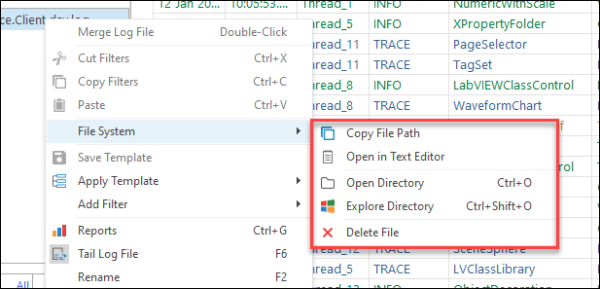
I think the 'File System' context menu approach makes the user intent clear while also giving room to expand in the future. Please let me know if you have any comments or suggestions.
Hope that helps,
Toby
I just wanted to let you know that we have now released LogViewPlus 2.5.34 as a BETA release. This release includes a new 'File System' context menu which consolidates file system actions and adds a new 'Delete' command.
I think the 'File System' context menu approach makes the user intent clear while also giving room to expand in the future. Please let me know if you have any comments or suggestions.
Hope that helps,
Toby
Posted on Sep 7, 2021 at 2:17 PM
Thanks, Toby, the screenshot looks great!
I noticed the installer wants to install it into Program Files (x86), while the previous version installed into the x64 directory. Why is that happening? I don't want to end up with two different versions installed in different directories.
I noticed the installer wants to install it into Program Files (x86), while the previous version installed into the x64 directory. Why is that happening? I don't want to end up with two different versions installed in different directories.
Posted on Sep 7, 2021 at 3:49 PM
The 'Program Files' target has changed in this release. This is an unfortunate side effect of migrating to an admin-free installer. You will need to manually uninstall the previous version before upgrading.
Note that LogViewPlus will still run as a 64-bit program on a 64-bit OS.
Note that LogViewPlus will still run as a 64-bit program on a 64-bit OS.
Posted on Sep 7, 2021 at 10:15 PM
The new Delete option works well. It would be nice if it supported deleting multiple files via shift-select. I had to clean out like 20 files today. I tried the Delete on one and it worked great. Then I tried shift-select and it was no-go, so I used the Open Directory option to open the file manager. I was able to shift-select and delete them using the File Manager, but of course, when I returned to the main window, the files were all still listed there, and lots of blank entries in the monitor pane.I was able to clean everything up by closing and re-opening the workspace, but it doesn't seem elegant.
Posted on Sep 8, 2021 at 5:51 AM
Thanks for the feedback Brad.
Shift-selecting multiple log files is something that has been on our list for awhile as it would make tasks like merging easier. Once we get this implemented, supporting the Delete option makes sense.
For this release, I will take a look at handling the delete events generated in the Log Explorer more elegantly. It makes sense that files removed via Log Explorer are also removed from the view.
Shift-selecting multiple log files is something that has been on our list for awhile as it would make tasks like merging easier. Once we get this implemented, supporting the Delete option makes sense.
For this release, I will take a look at handling the delete events generated in the Log Explorer more elegantly. It makes sense that files removed via Log Explorer are also removed from the view.
Posted on Sep 9, 2021 at 8:48 AM
Hi Brad,
We have just released LogViewPlus v2.5.35 as a BETA release. This release tracks file deletions made from the Log Explorer and updates LogViewPlus accordingly.
Hope that helps,
Toby
We have just released LogViewPlus v2.5.35 as a BETA release. This release tracks file deletions made from the Log Explorer and updates LogViewPlus accordingly.
Hope that helps,
Toby
This topic is archived and cannot receive new replies.