Template Manager
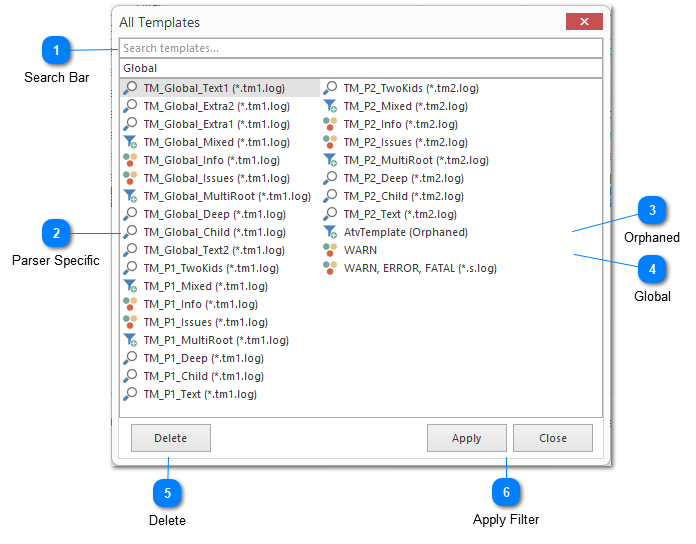
As you begin using LogViewPlus extensively, your library of highlight and filter templates will grow. The Template Manager allows you to navigate and organize these configurations immediately without scrolling through a flat list.
Templates are optionally grouped based on the Parser Configuration they were authored under (e.g., "IIS Logs" or "JSON Parser", etc). Filters which do not have a parser name are considered Global. They will appear regardless of the log file selected and the parser applied. Alternatively, if the parser for a given filter has been deleted, the filter will appear as "Orphaned".
If you find a parser-specific template useful for other formats, you can apply it out-of-context. Upon doing so, LogViewPlus will prompt you and optionally promote a template to a "Global" configuration, ensuring it remains easily accessible across all file types.
Double-Click to apply any template from the Template Manager to the selected view.

Search Bar

A quick text filter that instantly narrows down the long list of templates by name as you type, helping you locate a specific template without scrolling.

Parser Specific

Templates mapped to the specific parser configuration they were authored under (like IIS or JSON). LogViewPlus groups them so they are easy to access when analyzing logs with identical syntax.
In the above example, the parser is *.tm1.log.

Orphaned

The (Orphaned) tag dentifies templates whose parent parser configuration has been deleted. LogViewPlus preserves these orphaned templates here so no configuration data is accidentally lost.
Consider deleting them, or promoting them to the Global level by applying them and selecting "Yes" when prompted.

Global

Notice how this template is not tagged? This is a Global Template.
Global Templates are parser-agnostic. They can be safely applied across any log file regardless of how it was parsed.

Delete

Permanently removes the currently selected template(s) from your library.

Apply Filter

Applies the selected template, pushing its filters and highlights to your active log view.
You can also double-Click to apply any template from the Template Manager to the selected view.
Chapters
Topics
Pages
- Text Filter
- Log Level Filter
- Value Filter
- Date Time Filter
- SQL Filter
- Parse Message Filter
- Custom Parse Filter
- Merge Filter
- Add Template
- Add Workspace
- Save Analysis
- Log File Properties
- Highlight Manager
- Edit Directory Monitor
- Time Offset
- Merge File Editor
- Bookmark Detail
- Search All Logs
- Search Results
- Transform Text
- SQL Scratchpad
- Compare Views
- Template Manager