Compare Views
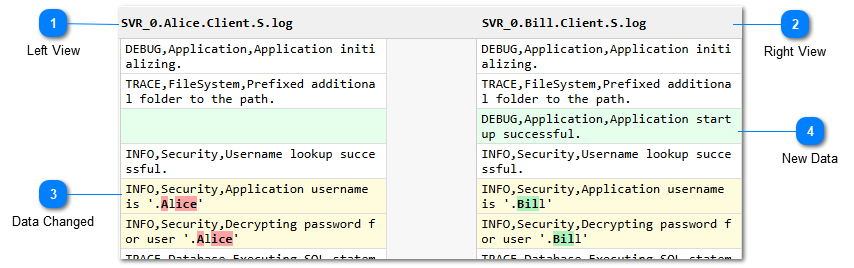
If you have two or move views selected, you can use the Compare Views command to diff the two views. The built in comparison tool is web page based and shown above. You can also configure a custom diff tool in External Commands.
Before comparing two views, you will be given the option to select the columns you want to use for the comparison. This is a chance to exclude any data which may be noisy such as the timestamp or thread id.
To ensure accuracy when comparing files that may have been parsed differently or come from different systems, the comparison engine intelligently maps columns between the files. LogViewPlus attempts matching in the following order:
1. Exact Column Name
2. Field Name
3. Element Type (e.g., Message, Thread, Logger)
Because of this intelligent mapping, columns do not need to be precisely identical across files, saving you from manual column re-alignment.

Left View

View 1 is shown on the left with the name of the view as represented in LogViewPlus.

Right View

View 2 is shown on the right with the name of the view as represented in LogViewPlus.

Data Changed
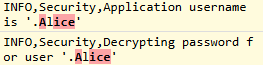
Modified data is shown with a yellow background.

New Data

New data is shown with a green background.
Chapters
Topics
Pages
- Text Filter
- Log Level Filter
- Value Filter
- Date Time Filter
- SQL Filter
- Parse Message Filter
- Custom Parse Filter
- Merge Filter
- Add Template
- Add Workspace
- Save Analysis
- Log File Properties
- Highlight Manager
- Edit Directory Monitor
- Time Offset
- Merge File Editor
- Bookmark Detail
- Search All Logs
- Search Results
- Transform Text
- SQL Scratchpad
- Compare Views
- Template Manager